


Can custom fieldsets be automatically assigned/populated/filled with information?
Yes - you can automatically populate custom fieldsets with information for any item in your database. This pre-filled data will automatically appear whenever that item is added to a new transaction.
Step-by-Step Guide
- Navigate to Items from the navigation menu.
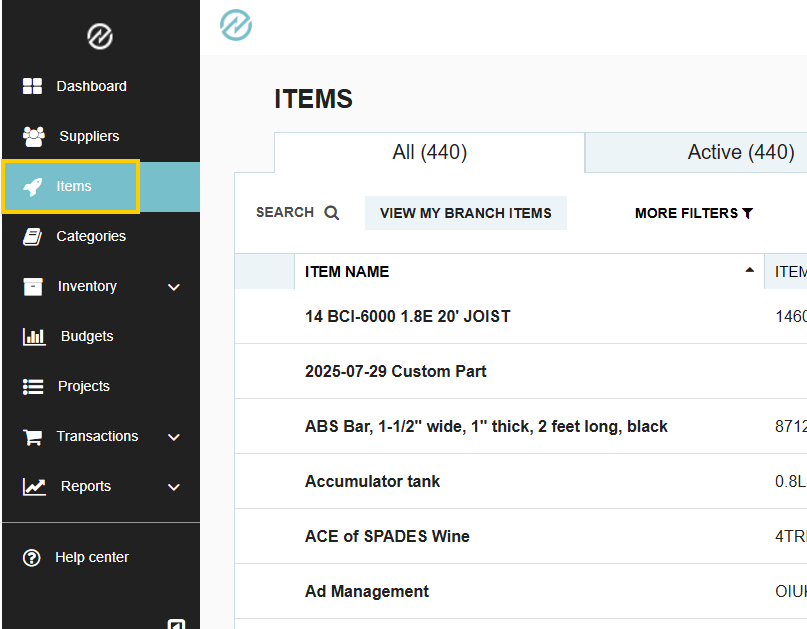
- Click the Edit icon (the pencil) for the database item you want to modify.

- On the item's profile page, find the Custom Fieldset dropdown below the Description field and click it to assign your fieldset.
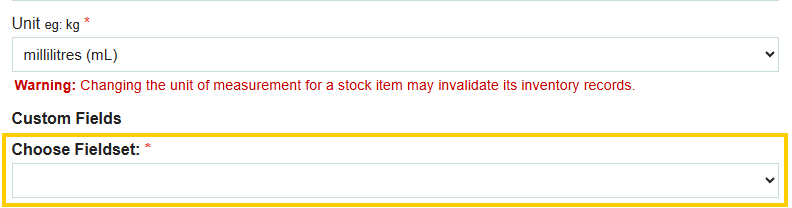
- Select a fieldset from the dropdown menu.
- In the "Value" section of the fieldset, you can enter any information that you want to be pre-populated by default. This field can be left blank if no default information is needed.
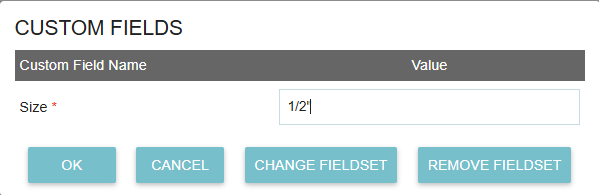
- Click OK to close the fieldset window, then click Save Item at the bottom of the page to save your changes.
How Fieldsets Appear on a Transaction
How the nformation displays depends on whether the item uses a Pop-Up or a Column custom fieldset:
- Pop-Up Fieldsets: The line item will show a "Custom Fields" column with an "Edit" button. Clicking this button opens the pop-up modal displaying all pre-populated field values, where they can be reviewed or edited if necessary.

- Column Fieldsets: The custom fields automatically render as dedicated columns directly within the line-item table. Pre-filled values (including defaults set for Shared or Unique Dropdowns) appear inline automatically on both internal documents and supplier-facing forms.

Thank you! Your submission has been received!
Oops! Something went wrong while submitting the form.
.webp)
.png)


