


Connecting Your Email Account to Tradogram
To ensure your procurement communications are seamless and recognizable, Tradogram allows you to link your business email directly to your user profile.
By connecting your Google or Microsoft account, any Purchase Orders, Requests, or messages sent from your profile will be delivered directly from your business email address, rather than defaulting to notifications@tradogram.com.
Why Connect Your Email?
Connecting your personal email provides several key advantages when communicating with vendors:
- Recognized Sender: Suppliers are more likely to open emails from an address and domain they already recognize.
- Higher Deliverability: Using your official business email domain significantly reduces the chance of messages getting caught in spam or junk filters.
- Direct Inbox Replies: When a supplier replies to an email sent from Tradogram, their response goes straight to your personal inbox.
- Complete Sent History: Emails sent through Tradogram will automatically appear in your personal email provider's Sent folder.
- Immediate Delivery Feedback: Any bounce-back notifications or undeliverable notices will be delivered directly to your inbox so you can resolve delivery issues immediately.
How to Set Up Your Email Connection
Setting up the connection takes less than two minutes. Follow these steps:
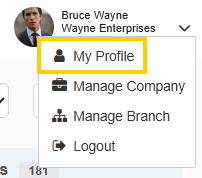
- Click on My Profile in the top-right corner of your screen.
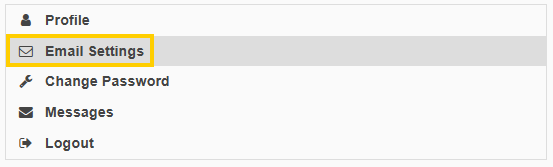
- Select the Email Settings tab.
- Toggle on the option labeled "Use my personal email to send emails to suppliers."
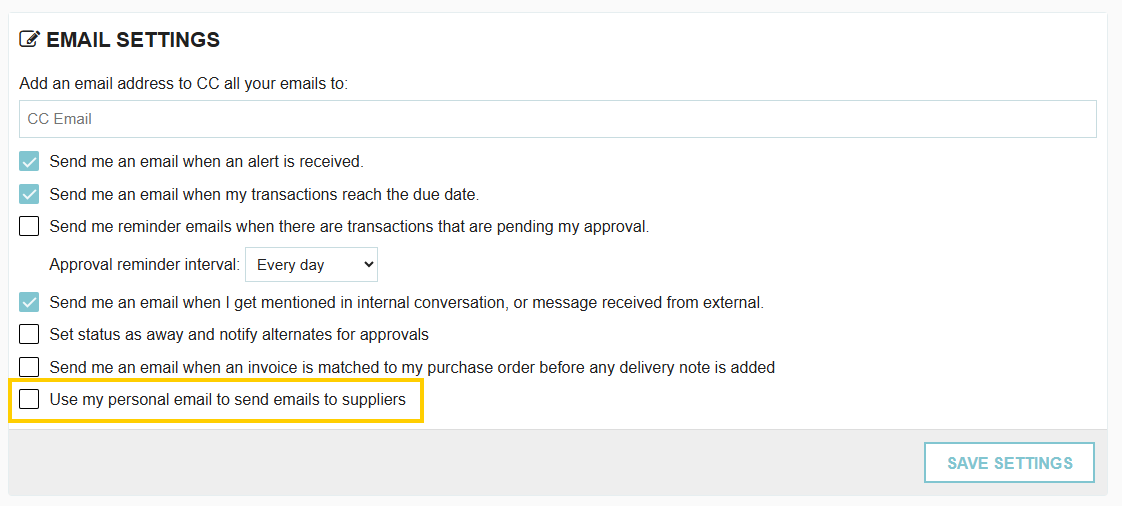
- Click Save.
Option A: Connecting with Google (Gmail / Google Workspace)
- Once your settings are saved, click the Connect with Google button.
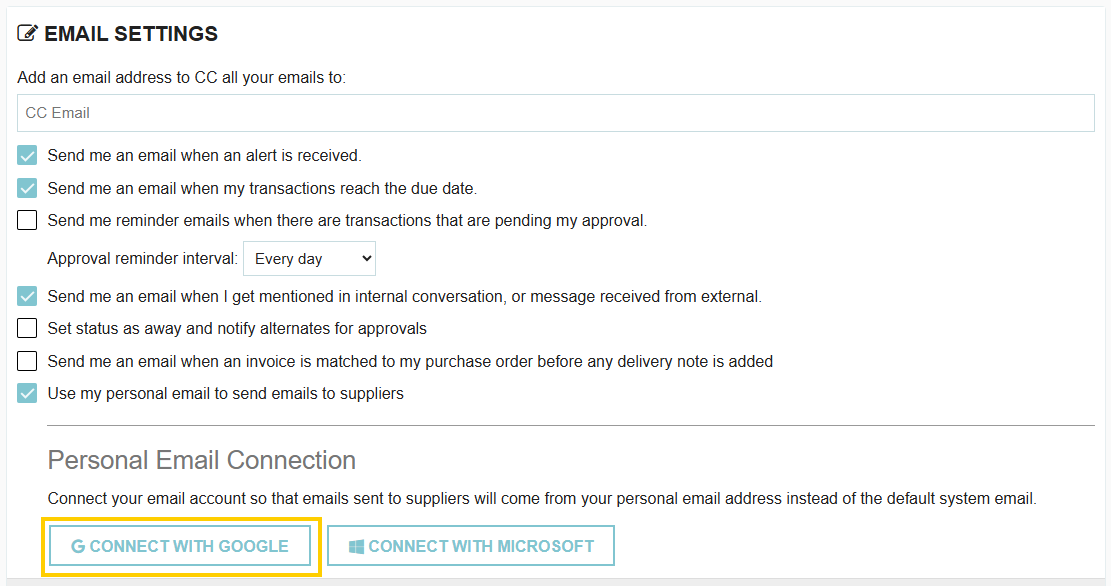
- Follow the Google sign-in prompts to authenticate your account.
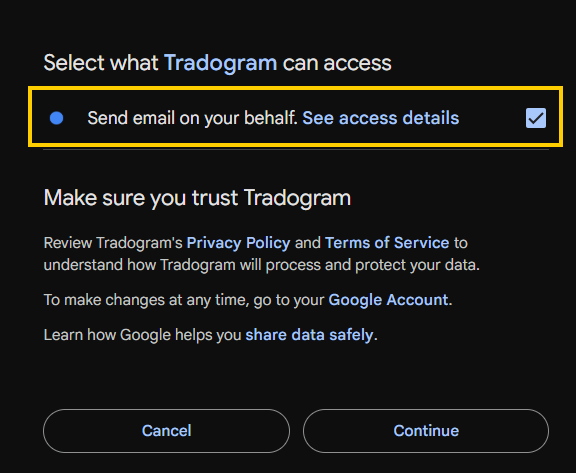
- Important: During the Google authorization screen, make sure to check the box granting permission to "Send email on your behalf." Without this permission enabled, Tradogram cannot route your messages through your inbox.
Option B: Connecting with Microsoft (Outlook / Office 365)
- Once your settings are saved, click the Connect with Microsoft button.
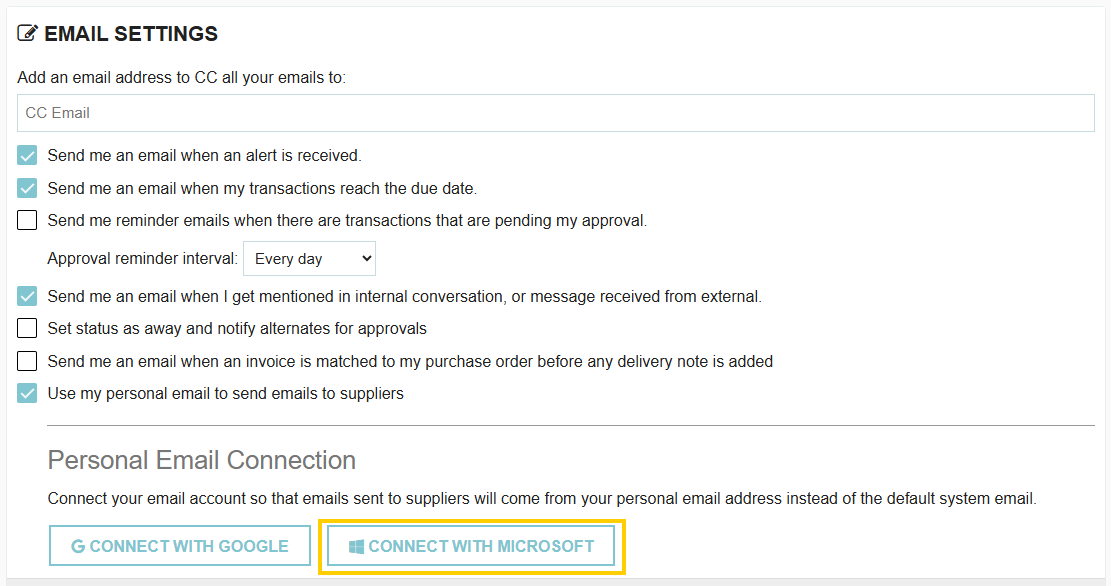
- Follow the Microsoft sign-in prompts to log into your work or school account.
- Review the requested permissions and click Accept to allow Tradogram to send emails on your behalf. (Note: If your organization requires admin consent for third-party apps, you may need your IT administrator to approve the connection).
Confirming Connection Status
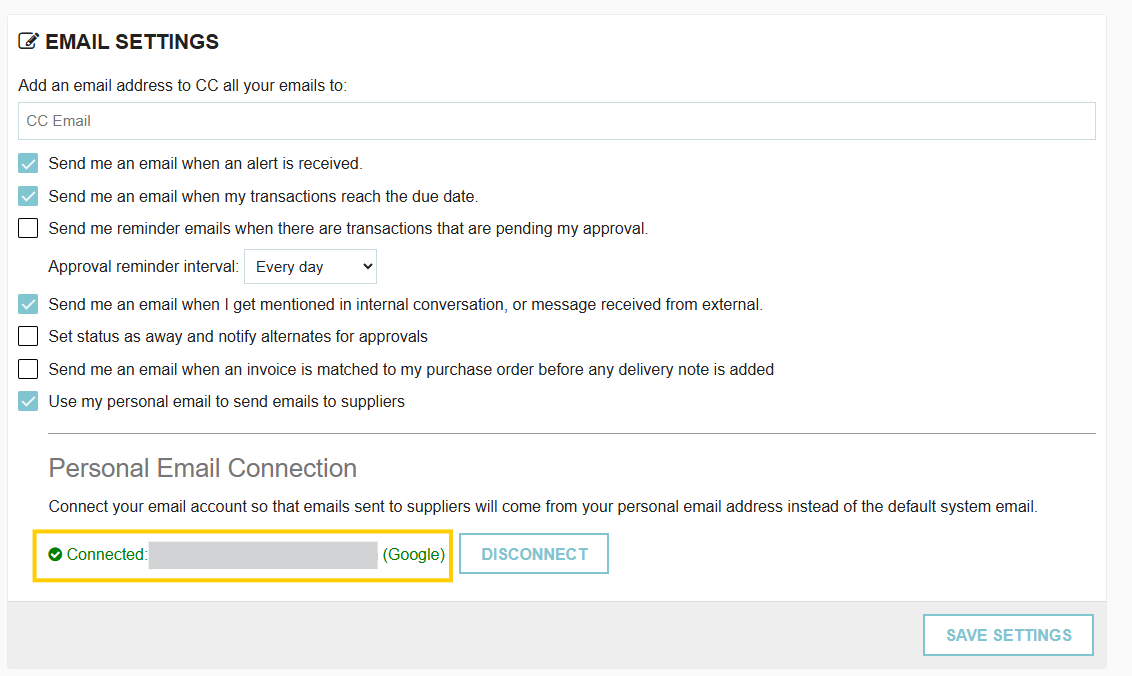
Once authentication is complete, your status in the Email Settings tab will update to confirm that your account is connected and active.
Thank you! Your submission has been received!
Oops! Something went wrong while submitting the form.
.webp)
.png)


