


How can sales orders be sent to a customer?
Sales Orders can be sent to customers directly through Tradogram, but this requires the customer to have a connected account.
Prerequisite: To receive sales orders, your customer will be required to have an active Tradogram account and connect with your (the supplier's) Tradogram account
Here are a few tutorials that can help get you and your customer connected:
- Set your Tradogram Account up to manage Sales
- How your customer can invite you (the supplier) to connect your Tradogram Accounts
Step-by-Step Guide
Once the sales portal is activated and your customer has connected their account:
- Toggle to Sales View (if needed): Click on "Dashboard" in the left toolbar.

- Change the drop-down to Sales View in the top right corner. This will change the navigation bar to show the sales options rather than the purchasing options.

- Start a Quote: Click on "Transactions" from the toolbar and select "Sales Orders."
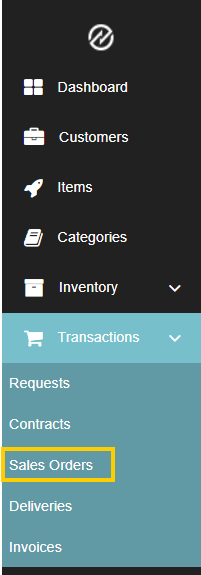
- Click the "Create Sales Quote" option at the top right of the sales order overview screen.

- Enter Details: Provide a sales quote title, add items, and enter the quantity and pricing details.
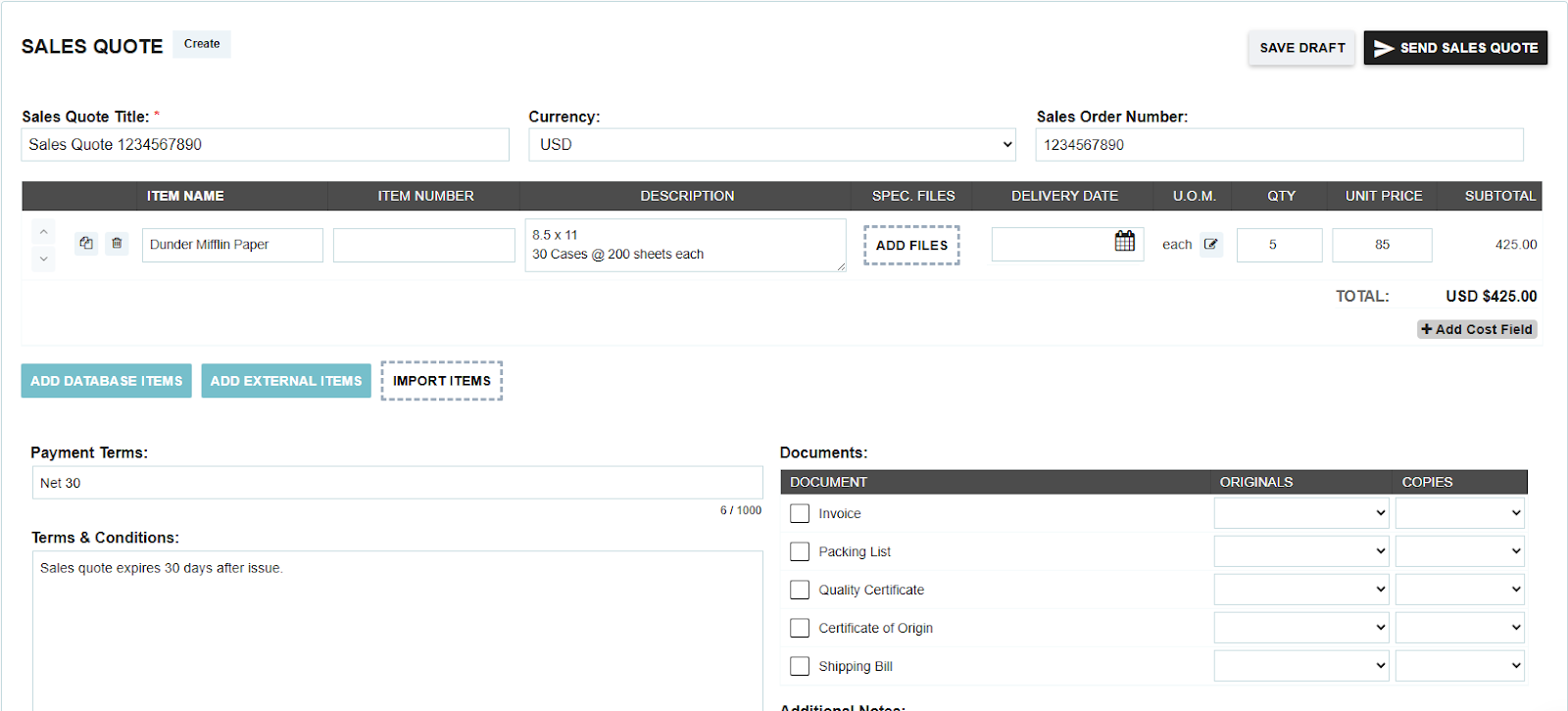
- Assign Customer: Add any additional order details (optional). In the "Customers" panel, select the customer’s account and choose a point of contact & delivery location from the dropdown menu.

- Send: Click the "Send Sales Quote" button to issue the sales quote to the customer.
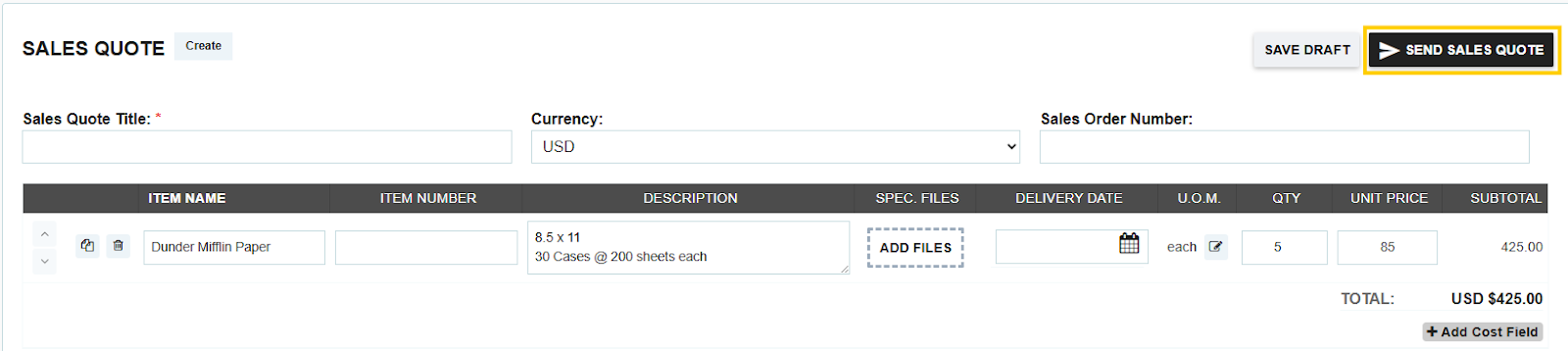
The customer will receive a notification when the sales quote is received and will be able to directly respond to the document through the system.
Thank you! Your submission has been received!
Oops! Something went wrong while submitting the form.
.webp)
.png)


