


What are messages used for?
The messaging tool in Tradogram provides a flexible, centralized way to communicate with both internal team members and external suppliers without leaving the platform. This ensures that all context regarding a purchase or negotiation is kept in one secure place.
Communicating on Transactions
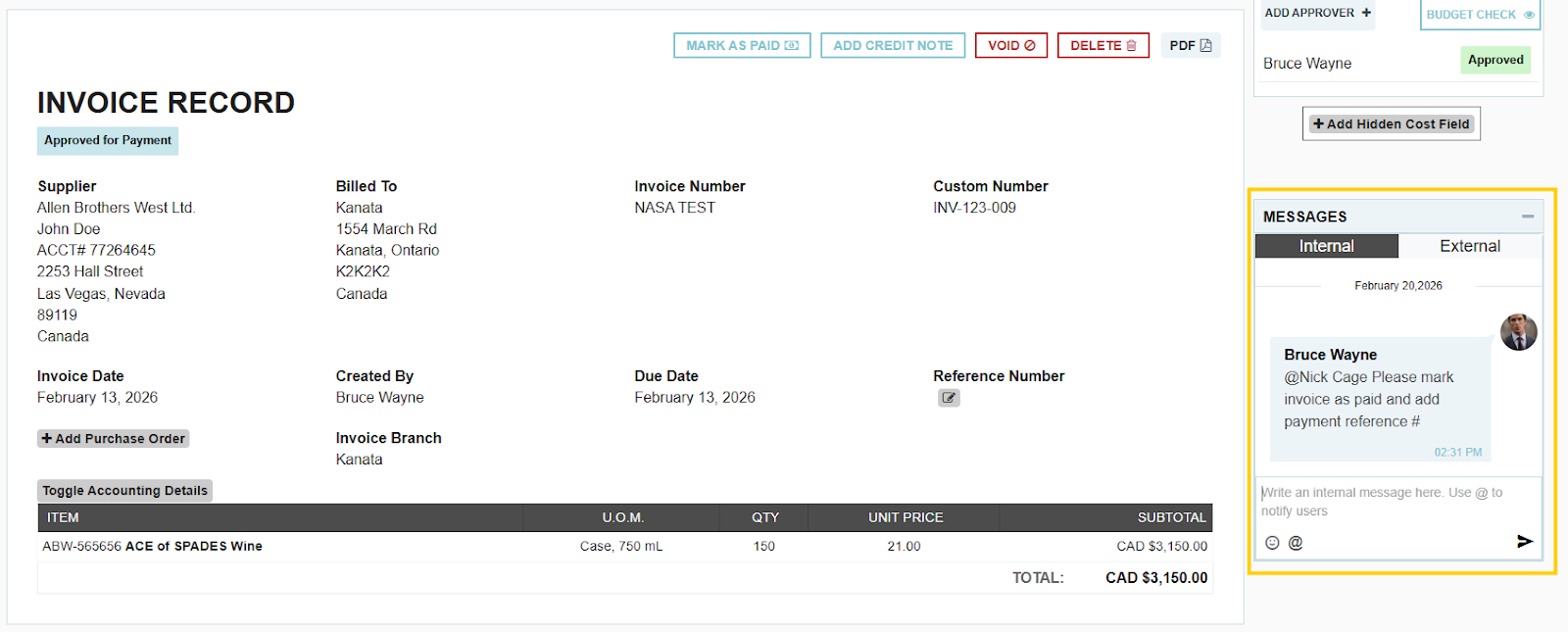
One of the most powerful ways to use the messaging tool is directly within a specific transaction (such as a Requisition, PO, or Expense). By using the message button at the top right of a transaction screen, you can start a conversation that is permanently linked to that document.
- Comment Threads: Messages on a transaction function like a comment thread.
- Tagging Users: You can "@" tag specific users to get their attention.
- Visibility: Any user with permission to view that transaction can see the message history.
- Notifications: Users are only notified of a new message on a transaction if they are explicitly tagged.
The Centralized Messaging Portal
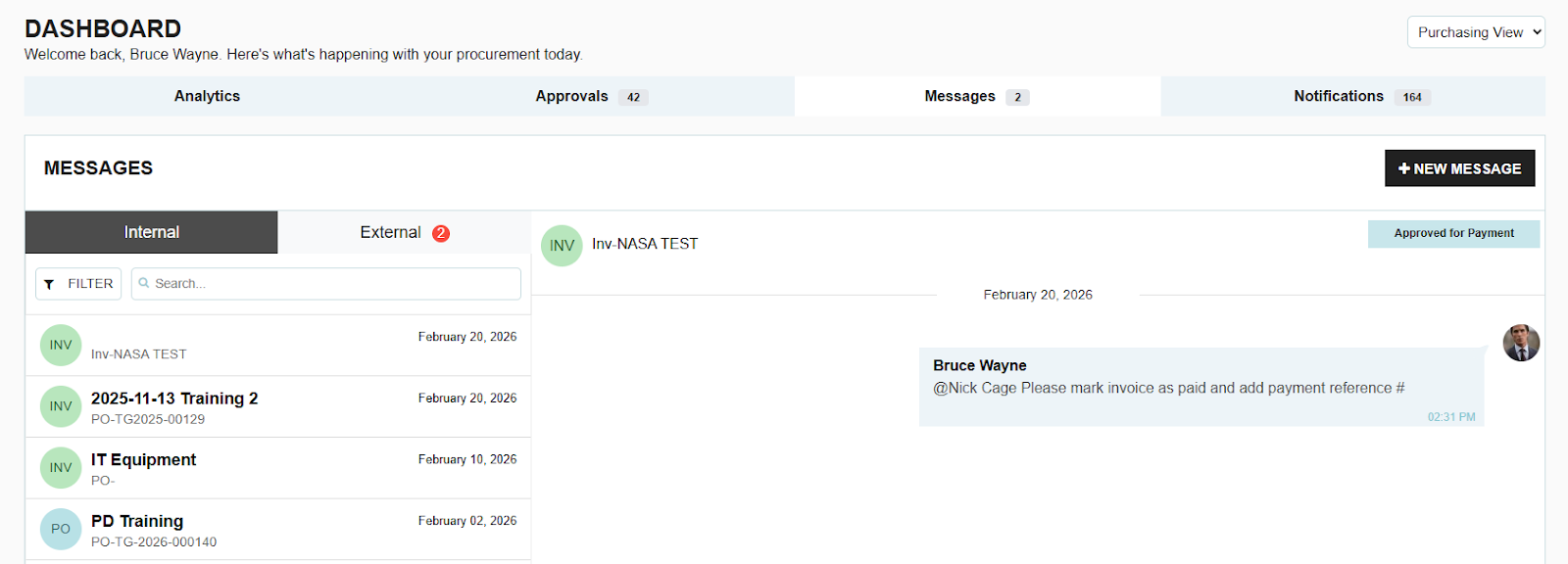
For a high-level view of your communications, you can select the "Messages" icon at the top right of your dashboard. This portal acts as your communication hub where you can manage:
- Linked Messages: Conversations tied specifically to transactions.
- Direct Messages: General conversations that are not connected to a specific document.
Advanced Usage and Help
The messaging tool offers significant flexibility for streamlining approvals and vendor relations. For a visual walk-through, you can watch this guided tutorial on how to use the messaging function in Tradogram.
If you are looking for step-by-step instructions on the mechanics of the tool, check out this guide on how to send messages both on transactions and in the messages portal.
.webp)
.png)


