


What is the “Manage Custom Fields” option used for/how can custom fieldsets for items be created?
The Manage Custom Fields tool allows you to extend standard item details by creating tailored data points—such as dimensions, technical specs, or serial numbers—that match your unique operational requirements.
Understanding the Two Types of Custom Fieldsets
Tradogram supports two types of custom fieldsets for items, each designed for specific workflows and display styles:
Pop-Up Custom Fieldsets
Pop-up fieldsets group multiple fields together into a single modal interface.
- Field Types: Short Text, Long Text, and Dropdown.
- How They Display: On transactions, a fieldset appears as a button in the item row. Clicking the button opens a pop-up window containing all the grouped fields.
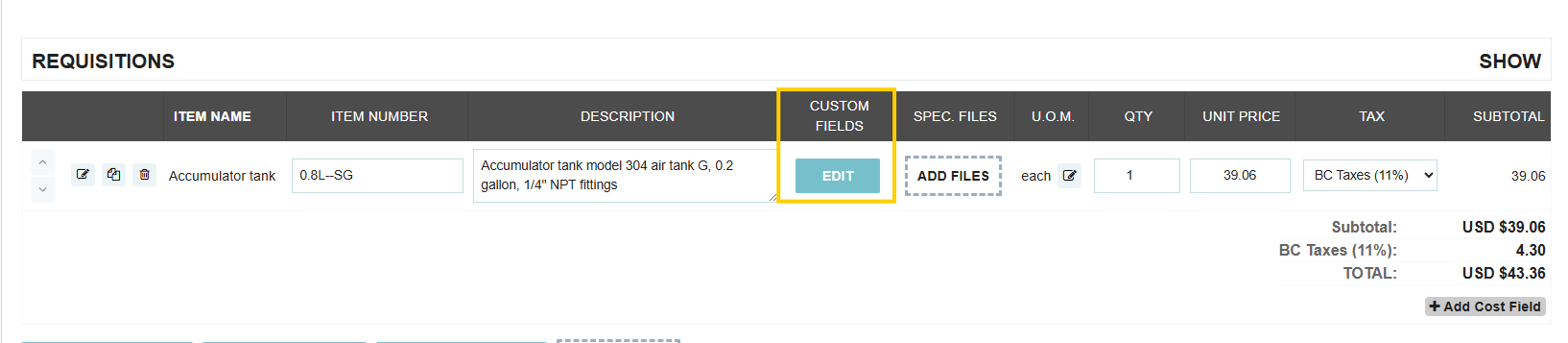
- Flexibility: They can be pre-assigned to an item in the item database or added on-the-fly directly while creating a transaction.
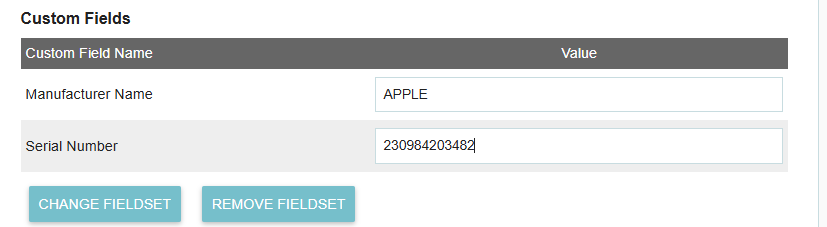
- Visibility: Visible to both internal users (for tracking) and suppliers (for specifications).
Column Custom Fieldsets
Column fieldsets display custom fields as individual columns directly within the line-item table on electronic documents.
- Field Types: Short Text, Long Text, Shared Dropdown (same options across all items), and Unique Dropdown (item-specific dropdown options).
- Supplier Requirements: You can make column fields required for suppliers to fill out. This is ideal for RFQs and Requests where you need vendors to provide additional data (such as lead times or model numbers) before submitting a bid.
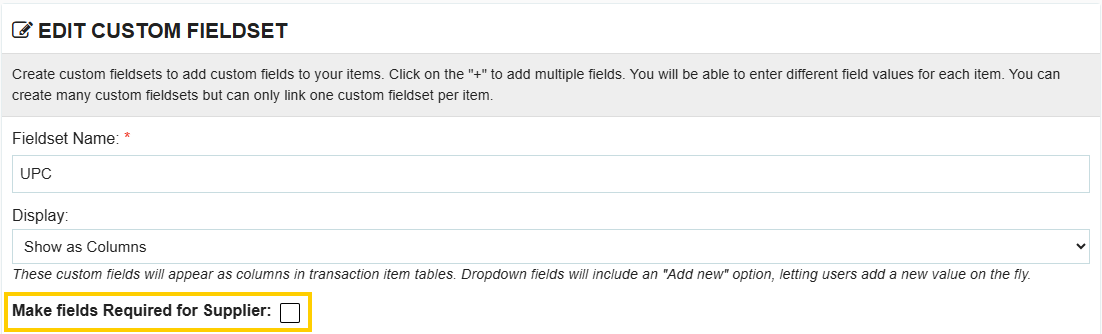
- Database Assignment Required: Column fieldsets must be attached to the item in the item database before creating a transaction. They cannot be added on-the-fly during transaction creation.
- How They Display: Column fieldsets will display in the item details table on transactions.

How to Create a Custom Fieldset
- Select Items from the left-hand toolbar.
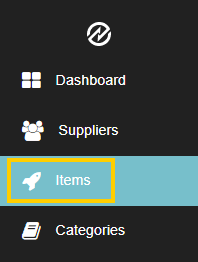
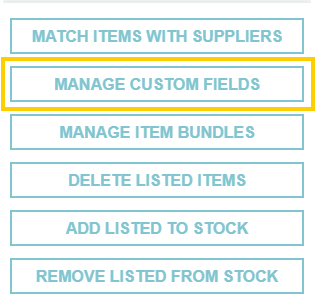
- Click the More Actions button at the top right and select Manage Custom Fields.

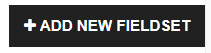
- Click Add New Fieldset in the top right corner.
- Name Your Fieldset: Use an intuitive name (e.g., "IT Hardware Specs" or "Supplier Bidding Fields").
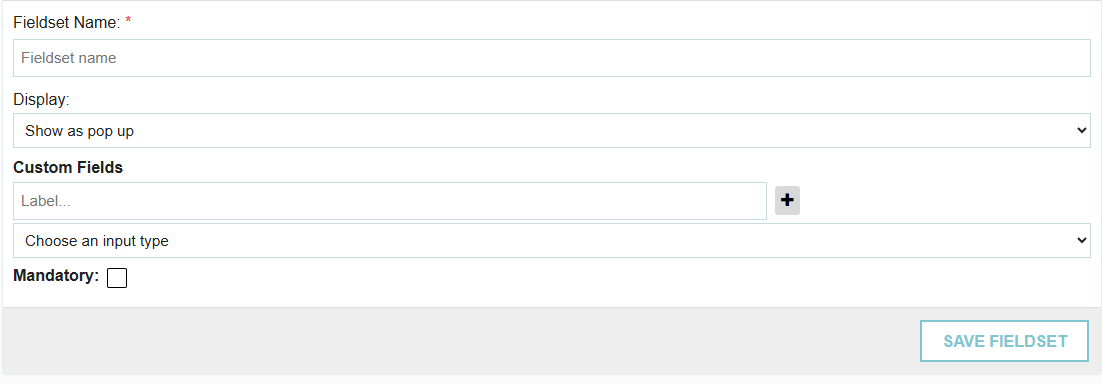
- Select Type & Add Fields: Choose between Pop-Up or Column, choose your field input types, and configure whether fields are mandatory for internal users or required from suppliers.
- Click Save Fieldset.
How to Apply Fieldsets to Items and Transactions
For Pop-Up Fieldsets:
- From the Database: Edit the item in your item database, assign the fieldset, and save.
- On a Transaction: On any new Requisition, PO, or Request, locate the item, find the Custom Fields column, click Edit, and select/populate your template.
For Column Fieldsets:
- Navigate to your Item Database and edit the desired item.
- Select your Column Fieldset.
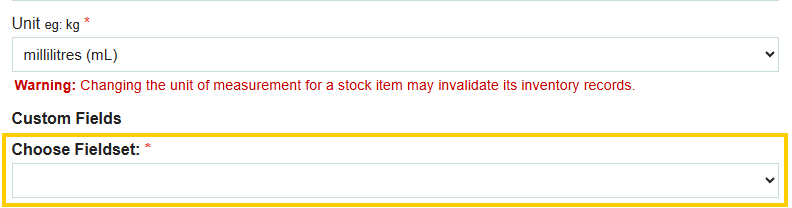
- If using Unique Dropdowns, define the item-specific dropdown choices directly on the item profile.
- Save the item profile.
- When the item is added to a transaction, the custom columns will automatically appear directly in the line-item table, where values can be edited or requested from suppliers.
Thank you! Your submission has been received!
Oops! Something went wrong while submitting the form.
.webp)
.png)


